How To: Rodeo Ticket's Integrated POS App
We’ll cover everything you can do within our point-of-sale app. Remember that you can scan tickets from any device, but the rest of the features are only compatible with Android.
Download the Rodeo Ticket App from the App Store or Play Store
In your app store, search for “Rodeo Ticket” to find our integrated POS app. Then, install it. Once it’s installed, you’ll open it.
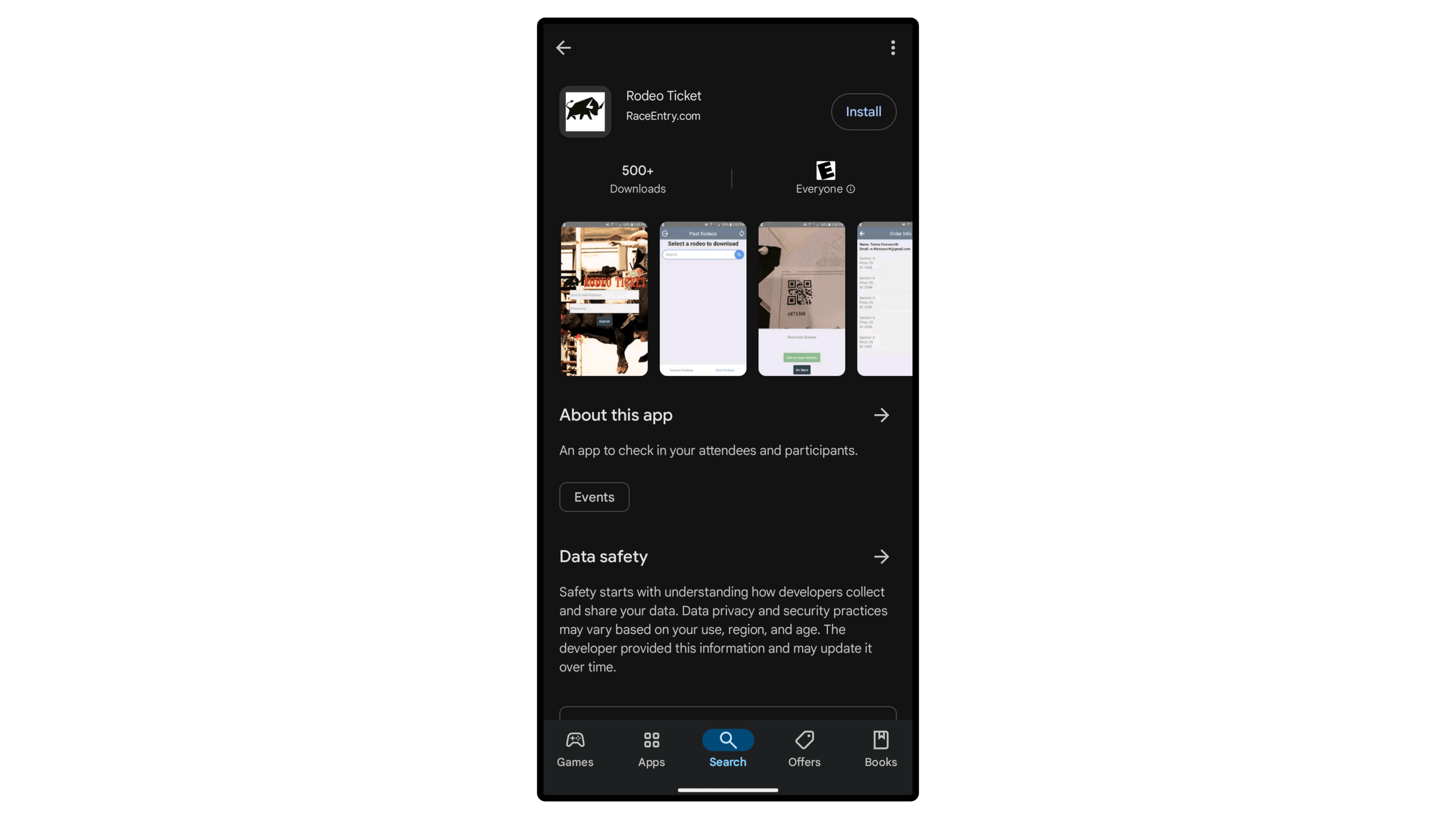
If you’re renting a tablet from us, it will already have the app installed.
Log In & Select Rodeo
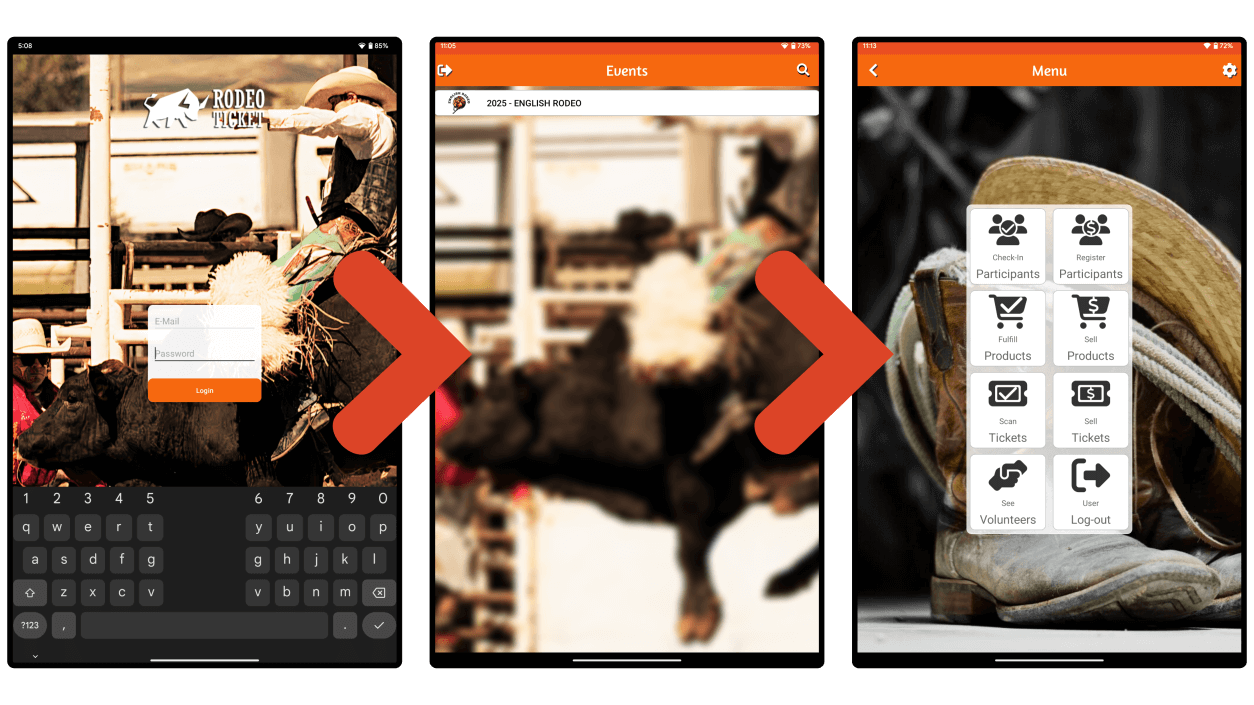
After you’ve logged in, you’ll see all of your rodeos. If you just have one, you’ll only see the one rodeo on this first screen.
Select your rodeo, then you’ll see several options depending on what you have set-up for your rodeo and what your permissions access is.
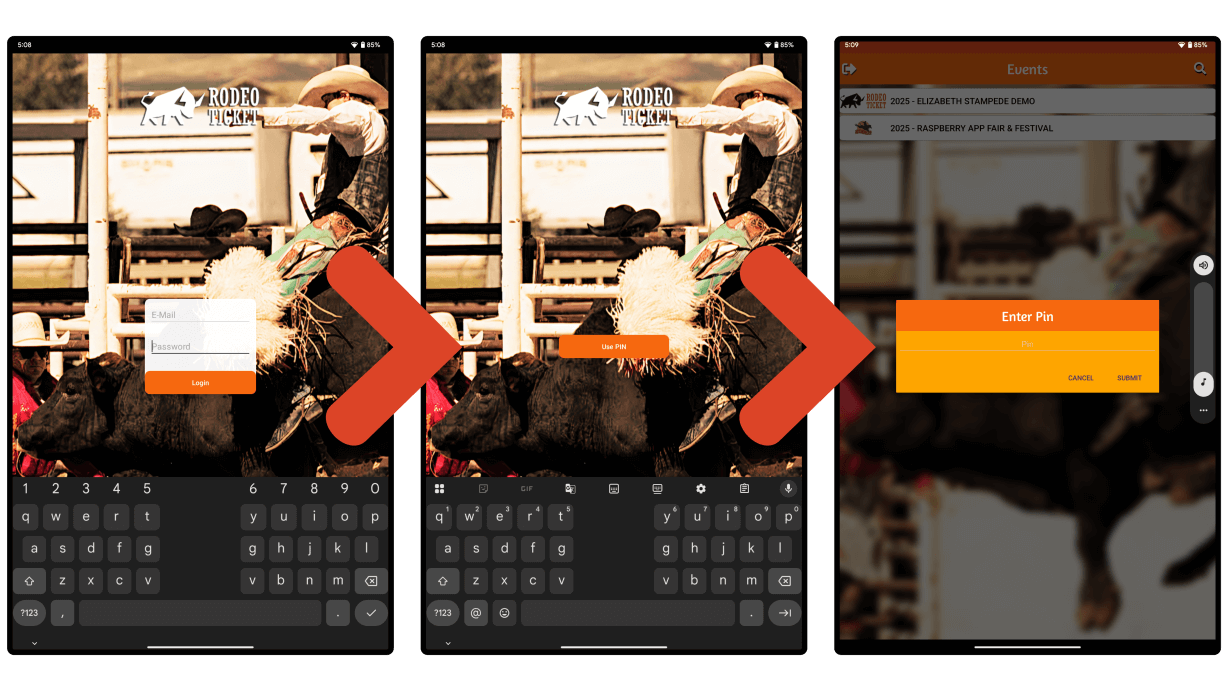
If you're using a PIN to log in, swipe left and select the "Use PIN" button. Next, select your rodeo. Then, enter the PIN.
Settings
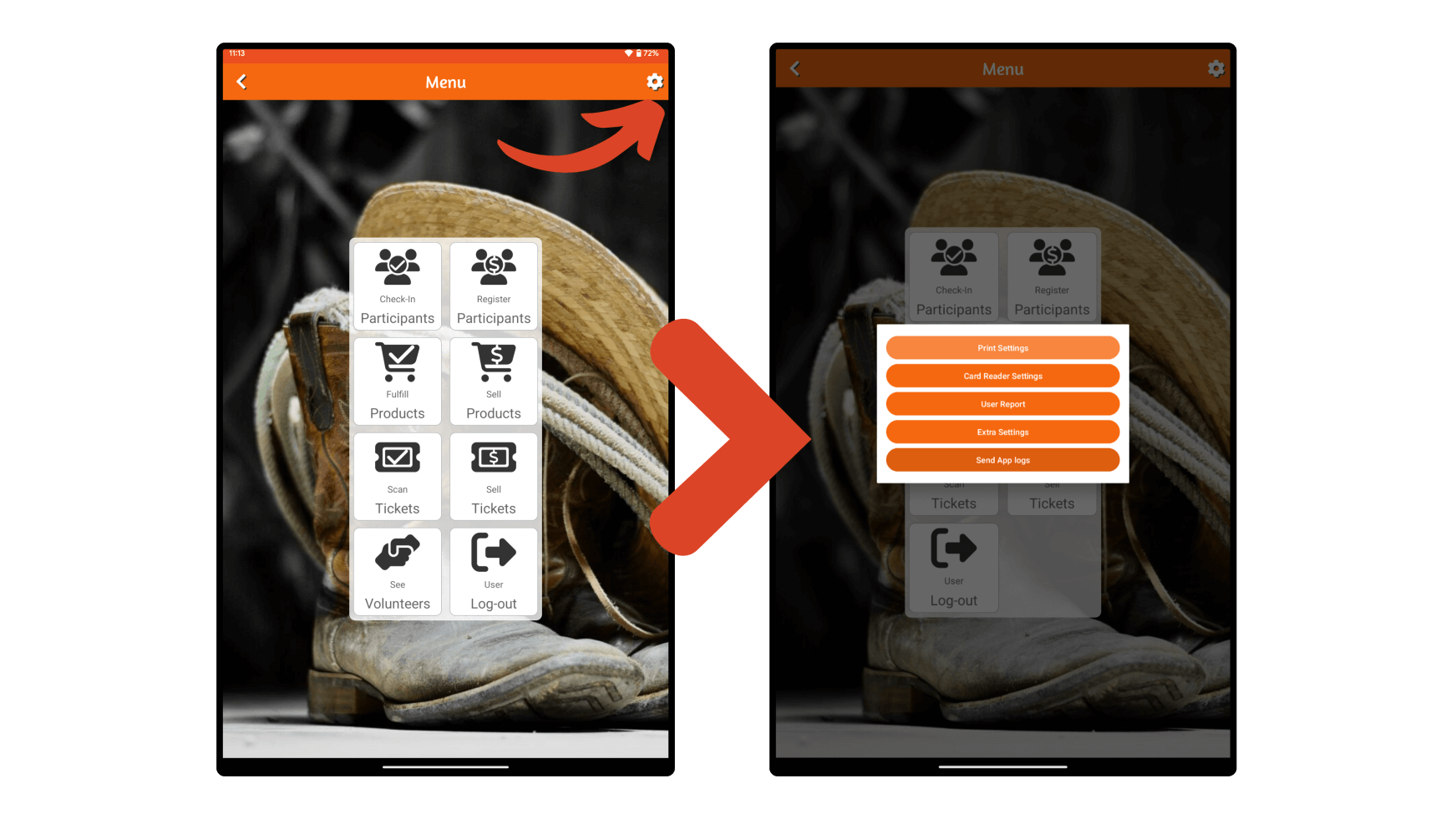
In the top right corner, you can click the gear button to view various settings:
- Print Settings – Select what type of printer and indicate how it’s connected to your device.
- Card Reader Settings – Select what type of card reader you’re using.
- User Report – View and print a report for the device user.
- Extra Settings – View current PIN and make its use required.
- Send App Logs – Send a report to our team to help them diagnose an issue you’re encountering.
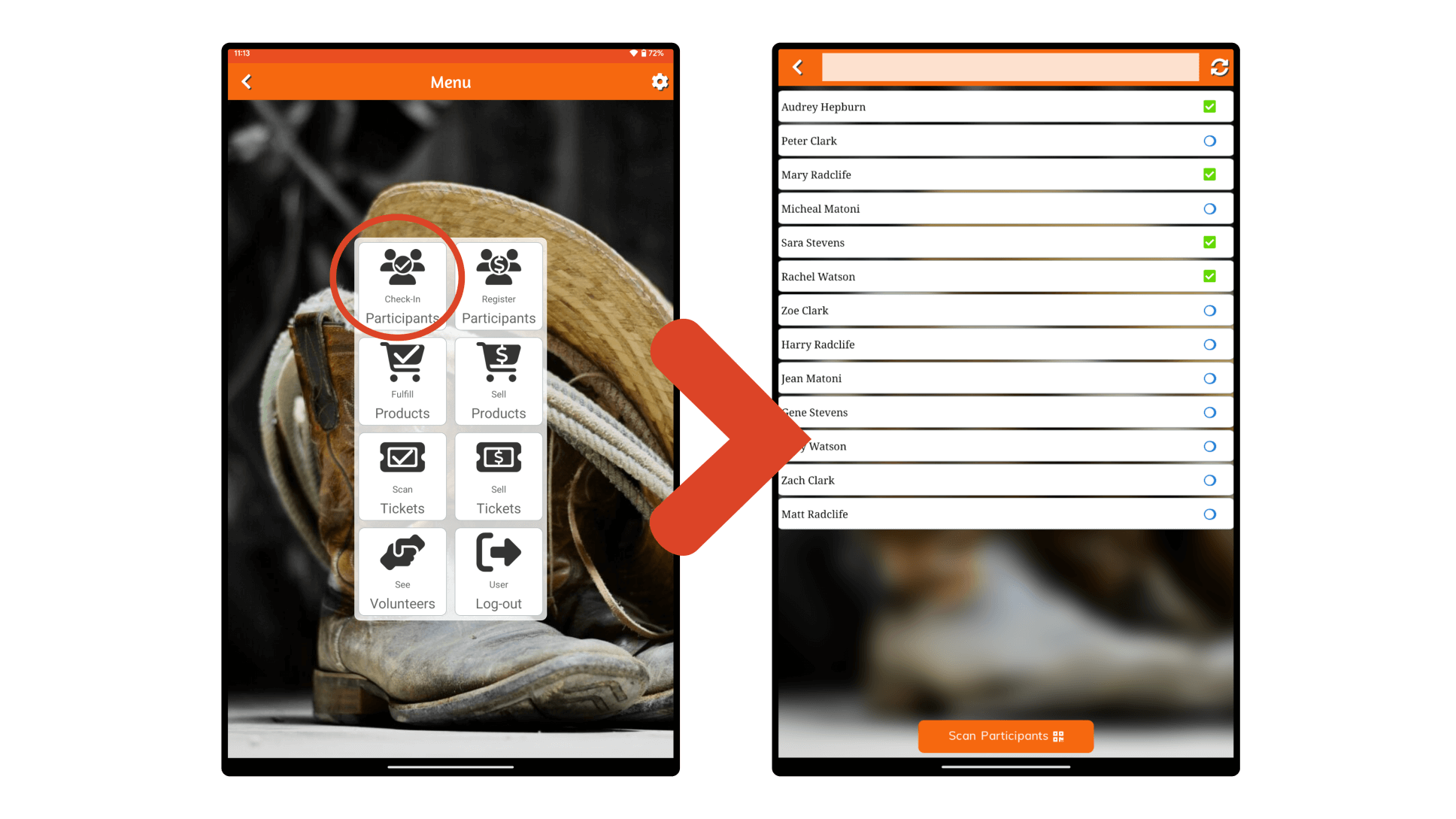
Check In Participants
Look up participants, and check them in with a tap.
Register Participants
Click “Register Participants” to sell registrations. Next, you’ll select “Registration”, then you’ll see the same simple form that participants complete online.
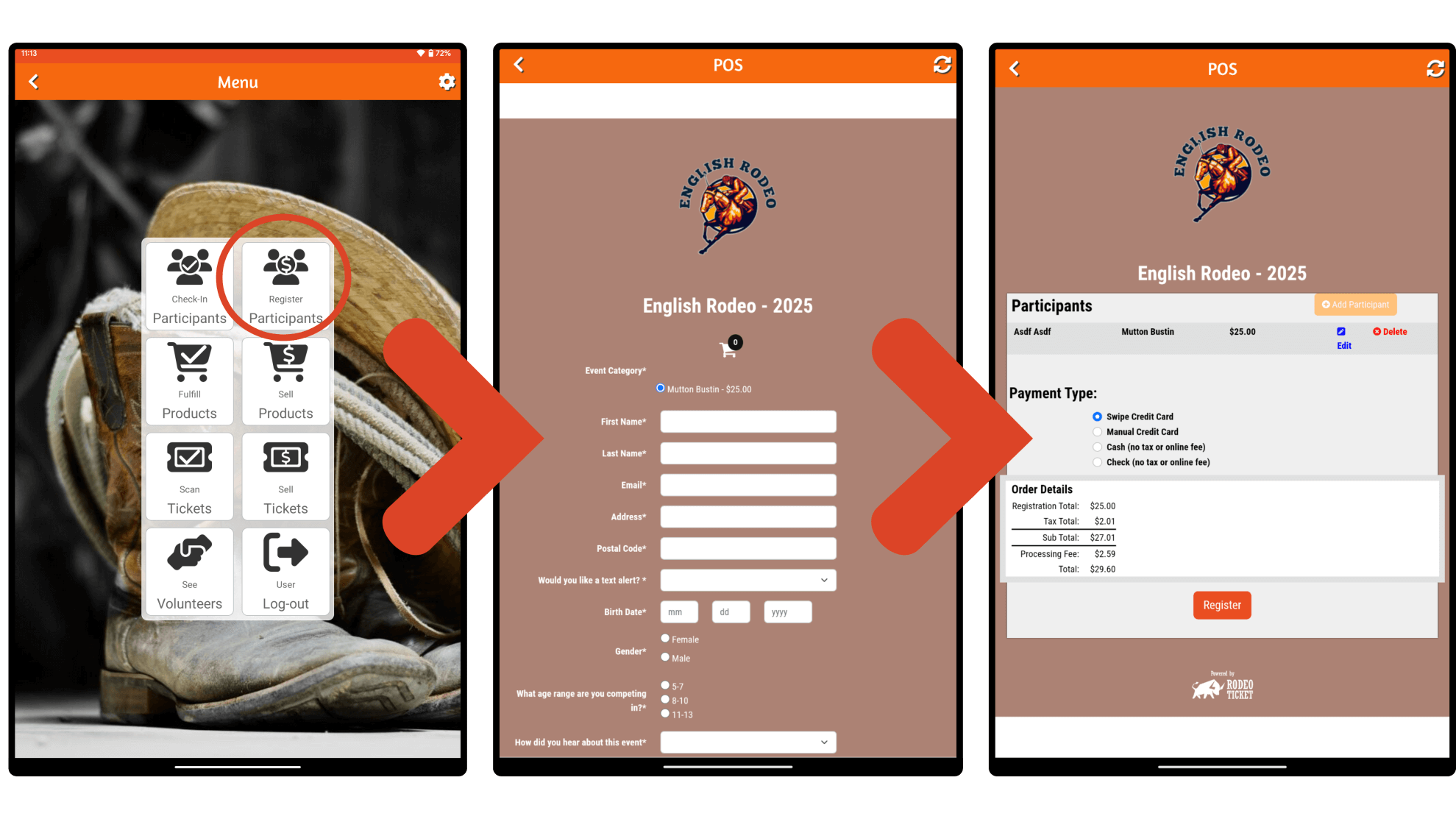
You can do multiple registrations in one order. Then, when you’re ready to checkout, you’ll continue to the payment page. You’ll see a summary of all of the registrations on the order. You can also select a payment method – a credit card swipe, credit card manual entry, cash, or check.
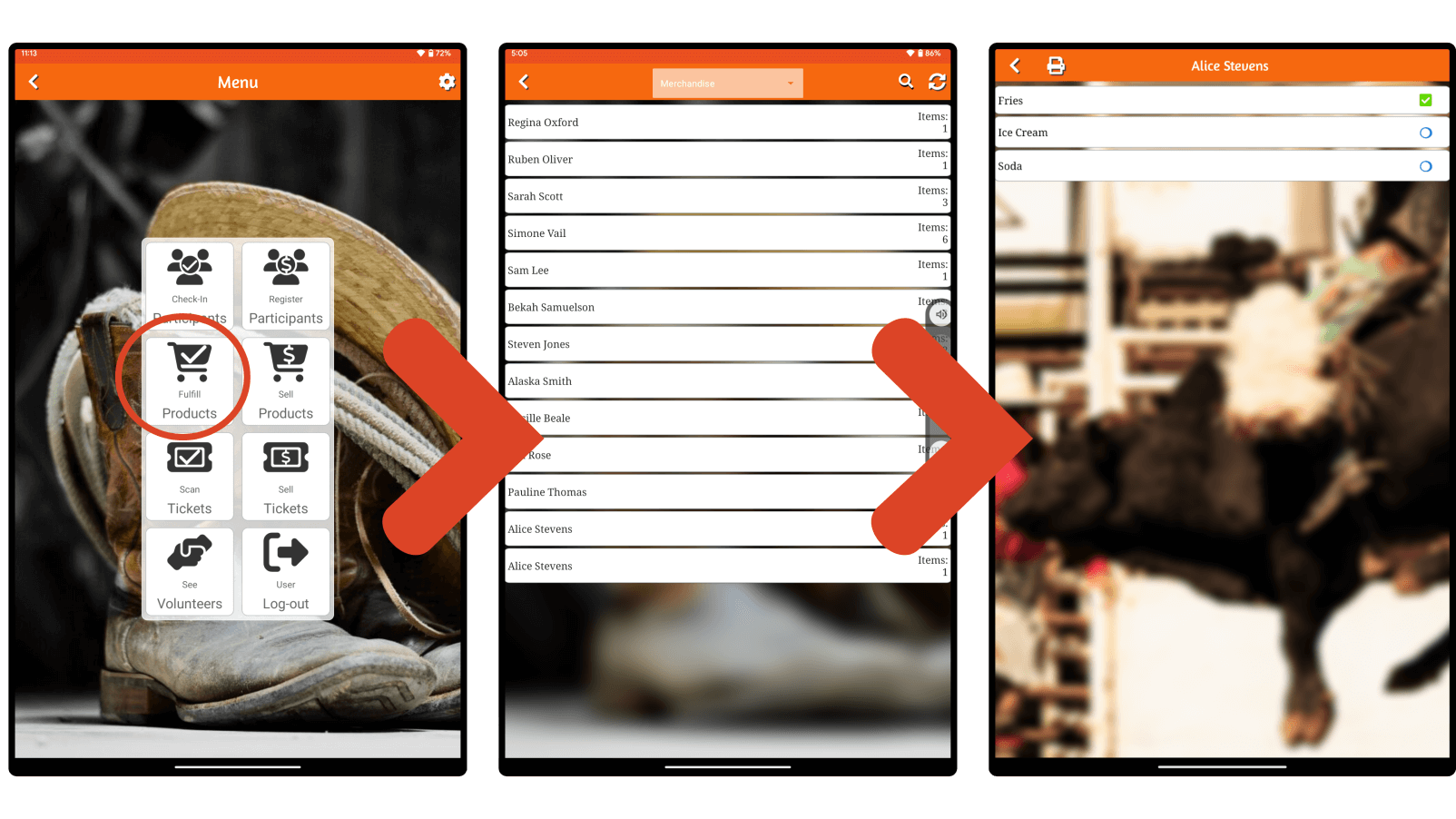
Fulfill Products
See orders that have been placed by name. You view orders by product category, which makes sorting between merchandise sales and concessions sales easy.
When you open an order, you can check off each item as it’s fulfilled.
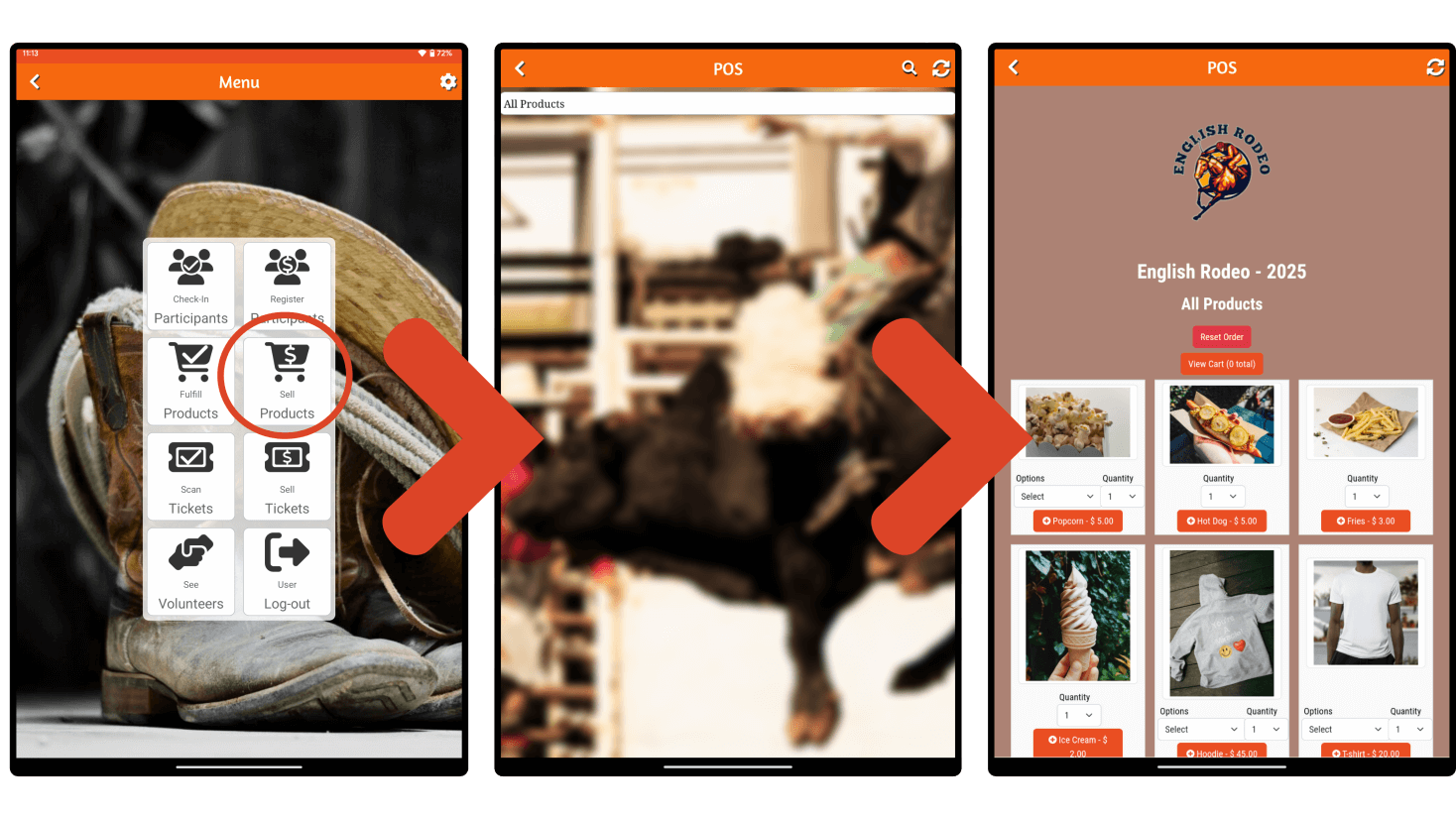
Sell Products
When you click “Sell Products”, you’ll next select how you want to view your products. You can view “All Products.” If you have set up product groups from your account, you can also view separate product groups. This view categorization helps make your sales processes faster because you can separate merchandise from concessions.
Once you open the next view, you can quickly add items with sizing and quantities. When the order is complete, you’ll scroll down to accept payment. You can accept payment via credit card swipe, manual credit card entry, cash, or check.
Scan Tickets
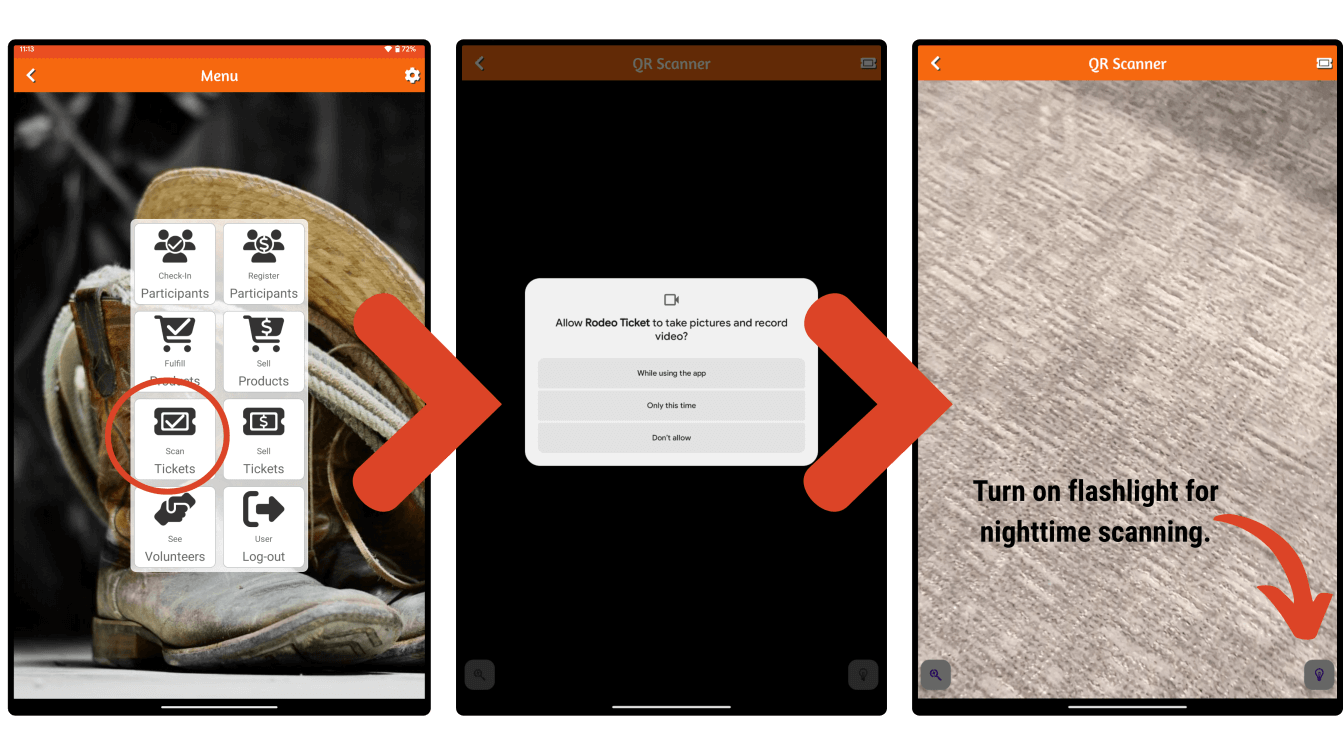
You can scan tickets from any device. When you select scan tickets, you’ll first need to grant camera access to our app. Then, you can start scanning.
The screen will flash green if the tickets are valid. If the screen flashes red, there’s an issue with the tickets.
In the lower right corner, you can turn on the flashlight for scanning tickets at night.
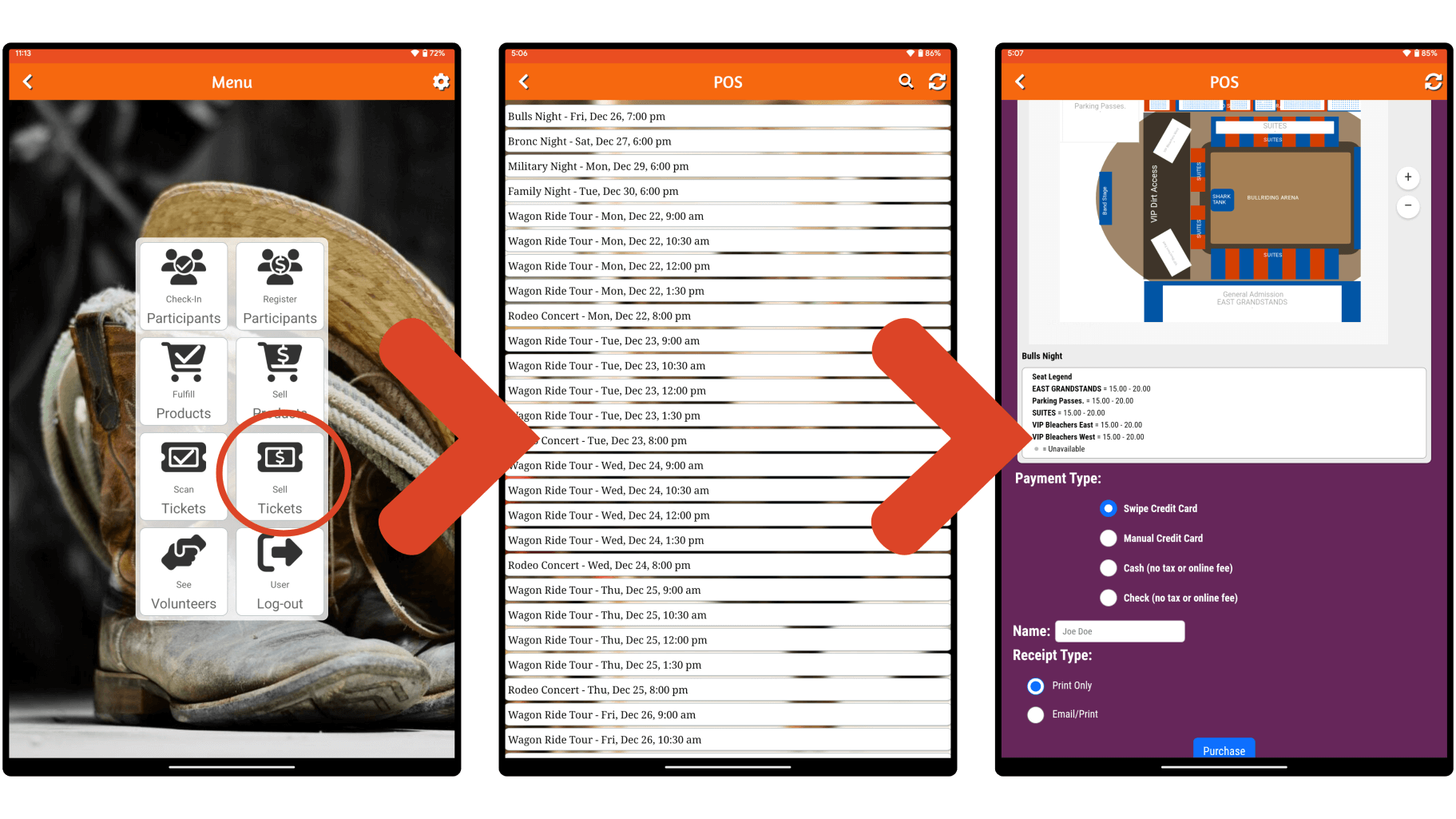
Sell Tickets
You can easily sell tickets from our POS app. Select the event time, then seats or number of tickets. Then, select the payment information to accept payment.